
Telecom site audit photos close a job faster when each one shows the place, the time and the work, and when the whole set reaches the client as one checkable report. Capture live, keep one record per site, and send the report before you leave. A crew finishes a tower at dusk and sends forty photos on WhatsApp. Days later the client asks which site they were. This post gives tower and fibre crews a routine that answers that question.
Why do telecom jobs stay open after the work is done?
Most delays are not about the work. They come from the proof. The client or the PMC (project management consultancy) cannot tell which site a photo came from, when it was taken, or whether a photo is missing. So the job sits open while someone asks for more.
Every question goes through a phone call and a chat thread. The crew has moved to the next tower, and nobody remembers which pole or which chamber the picture shows. Fibre work makes this worse, because trench, duct and joint closure all look alike from a distance.
Photos sent over chat also lose their location and time. A phone clock can be wrong, and a gallery photo can be from any day. The reviewer sees only the picture.
With proof and without
| Without a routine | With a routine | |
|---|---|---|
| Source of photos | Gallery, forwards, screenshots | Live in-app camera only |
| Place and time | Typed in, or missing | Burned into each photo at capture |
| Missing photo | Found days later | Seen against the checklist on site |
| Report | Built by hand in the office | One tap, before leaving |
| Checking | Phone calls | Client scans a QR |
The table describes how Verafii works, as set out on its GPS camera photo report page. The same habits help with any camera if you keep to them.
How do you turn the client's photo spec into a checklist?
Start from the client's own document: the work order, the scope or the audit format they sent. Use their wording for each photo. Do not assume what any operator or client needs. If the document is unclear, ask for the list in writing before the crew goes out.
Then break the list into stages a crew can follow at the site. A typical tower or fibre job has the stages below. Replace them with whatever your client asks for.
Arrival
Frame the site name board or the site ID, plus a wide shot of the tower or the road. This ties every later photo to the place.
Before the work
Shoot the condition as you found it: the rack, the feeder, the duct or the pit. A before photo is what makes the after photo mean something.
The work in progress
Capture what will be hidden later: earthing connections, cable routes in a trench, joint closures before sealing. Once covered, they cannot be photographed again.
After the work
Shoot the finished item from the same angle as the before photo. Add a close shot of labels, tags or cable markers so they can be read.
Departure
Take one wide shot of the cleaned-up site. It answers the common question of whether the site was left tidy.
What to say or write on site
Give the foreman one line: "Every item on the list gets a photo before you move."
Add a short note to each photo in the record. Sample notes:
- "Feeder cable before replacement, sector 2."
- "Duct end, chamber 14, before backfill."
- "Customer asked to skip photo 9: access locked."
Notes that state a gap honestly are better than a missing photo with no explanation.
Many sites a day: why one session per site?
A crew that visits four or five sites in a day produces hundreds of photos. If they all land in one stream, sorting them is a day's work. Keep one record per site instead.
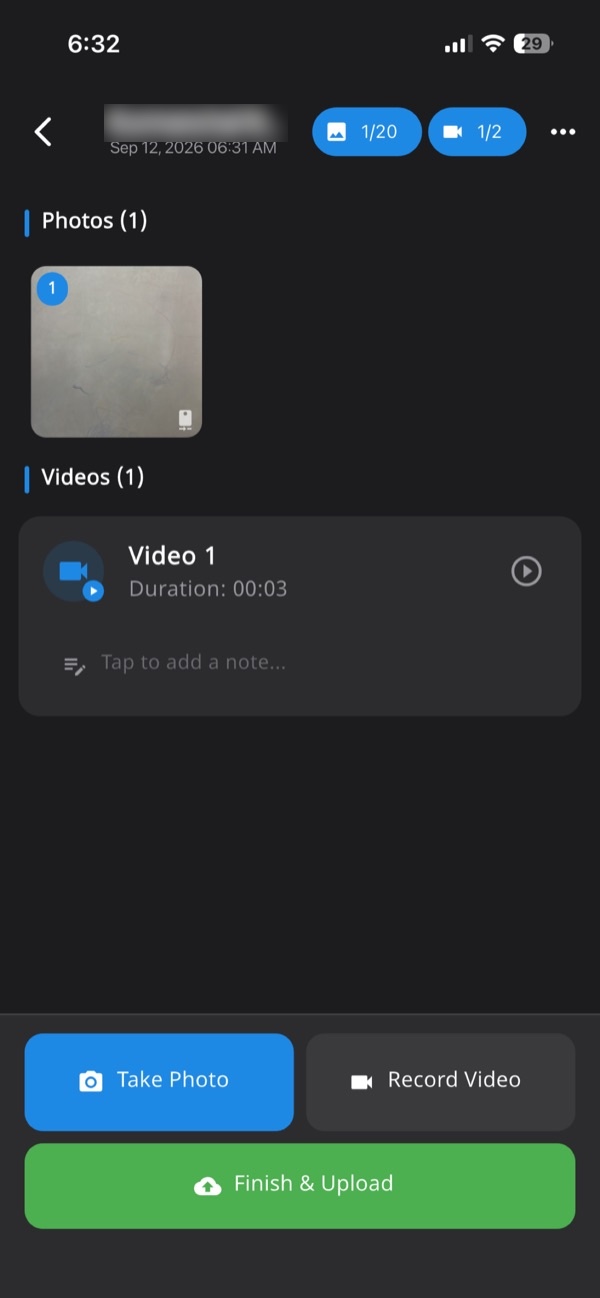
In Verafii, every photo, video and note lands in one session, numbered and tied to the site. Open a session on arrival and close it on departure. The photos of the next tower go into a new one.
This gives the office three things:
- A clean set per site: nothing from another tower mixed in.
- A numbered order: gaps show up against the checklist.
- One report per site: you send what the client asked for, not a folder of everything.
Name each session the way the client names the site, so the report matches their own records.
What if there is no signal at the site?
Many tower sites and fibre routes have weak or no mobile data. A routine that needs signal fails exactly where you need it.
Verafii works offline. You capture with no signal, and the photos upload when the phone is back online. The GPS and time are stamped at the shutter, so the stamp does not wait for a network.
A few habits help:
- Charge the phone: offline capture still uses the battery, and a dead phone has no proof.
- Check storage before leaving: video fills a phone quickly.
- Open the app on the road back: confirm that the uploads finished before you call the site done.
- Do not switch to the normal camera: a gallery photo breaks the chain you are building.
GPS can drift in a cutting, inside a shelter or near tall buildings. A small offset is normal and not a sign of fault.
How to do it with Verafii
These steps follow what the app does. Screens may differ slightly by version.
- Open Verafii on arrival and start a session for the site. Use the site name or ID from the work order.
- Capture the arrival photos with the in-app camera. There is no gallery to pick from, so every photo is live.
- Work through your checklist. Each photo gets the GPS and time burned into it at the shutter.
- Add a short note to any photo that needs one, and record live video with audio if the client wants a walk-through.
- If there is no signal, keep going. The app stores the capture and uploads when you are back online.
- Before you leave, check the numbered photos against the checklist and capture what is missing.
- Make the one-tap PDF report. It carries the client's logo, the location, the device, the time and a QR code.
- Send the report to the client or the PMC.
Anyone can then check a Verafii report: scan the QR, or drop the file they received into the verify page. For more on how that works, see our post on scanning the QR and dropping in the file.
Verafii does not upload anything to any operator or government portal, and it does not replace an app your client tells you to use. It is the record you hand over.
Fake-location flags: what should you do about them?
A person can fake a phone's location with another app. Verafii flags a photo taken with a fake location, on Android and iPhone. The flag shows on the photo, the report, the verify page and the dashboard. It is flagged, not hidden, so the reviewer can see it.
A flag is a reason to ask. It is not a verdict. Before you act:
- Ask the crew member first: some phones have location tools or developer settings left on by mistake.
- Look at the other photos in the session: one flag among many clean ones tells a different story from a flagged set.
- Retake if you can: go back or ask for a fresh capture, if the work is still visible.
- Write down what you found: a note on the record helps the next person who reads it.
Our post on catching fake GPS fairly covers how to talk to a crew about it. Tell crews about the flag at the start, so it works as a clear rule and not a trap.
How do you hand over a report the client can check?
The report is what closes the job. Send it the same day, while the crew can still answer questions.
Field
The crew checks the numbered photos against the checklist, adds notes, and makes the report before leaving the site. If something is missing, they find out while still standing there.
Office
A manager reviews sessions on the web dashboard and uses exports for the team's own records. Look at flags, gaps and notes. Then send the report on to the client. For the layout of a handover, see our work completion report format post.
Client
The client or PMC scans the QR on the report. The public verify page opens with no account and no app. If they drop in the file they received, it is fingerprinted in the browser, and nothing is uploaded. A match means the file is untouched. One SHA-256 fingerprint covers the PDF, every photo and every video.
Whether a client accepts a report is their decision. The report shows them what was captured, where, and when.
What telecom site audit photos can't prove
A photo shows a moment, not the quality of the work. Be clear about the limits.
- Workmanship: a photo of a joint closure does not show that the splice loss is within limits. Keep test readings separate, and let the right person record them.
- What is hidden: a trench photo shows the trench you photographed, not the whole route.
- Who did the work: the report shows the device and the location, not the person's skill. Attendance is a separate add-on, available on request.
- GPS accuracy: it can drift near tall buildings, inside shelters and in deep cuttings.
- The client's acceptance: only the client decides whether the evidence is enough.
- Fake location: Verafii flags it, but it does not prove intent either way.
If your client wants test results, a signed form or a drawing, send those along with the report. The photos support them and do not replace them.
Checklist: before you close a telecom site
- Spec in hand: the client's photo list is written down and shared with the crew.
- Session open: one session per site, named as the client names it.
- Arrival shots: site ID and a wide view are captured.
- Before photos: the condition you found, from a clear angle.
- Hidden work: earthing, trenches, closures and joints photographed before covering.
- After photos: the same angles as before, plus readable labels.
- Notes: every gap or skipped photo explained in a line.
- Offline check: uploads confirmed once the phone has signal.
- Flags reviewed: any fake-location flag asked about, not assumed.
- Report sent: the PDF made before leaving, with the QR intact.
Frequently asked questions
What photos should a telecom site audit include?
Use the list in the client's own work order or audit format, because it differs by client and job. A common pattern is arrival, before, work in progress, after and departure. Photograph anything that will be covered later, such as earthing or a trench.
Can I take telecom site photos without mobile signal?
Yes. Verafii works offline: you capture with no signal, and the photos upload when the phone is back online. The GPS and time are stamped at capture. Check that uploads finished before you call the site done.
How do I keep photos from many sites separate?
Open one session per site. In Verafii every photo, video and note lands in that session, numbered and tied to the site. Then each site gives you one clean report.
Does a fake-location flag mean my crew cheated?
No. It is a reason to ask. Verafii flags a fake location on Android and iPhone, and the flag appears on the photo, report, verify page and dashboard. Ask the person, look at the other photos, and note what you find.
How does a client check a Verafii report?
They scan the QR on the report, which opens a public verify page. No account or app is needed. They can also drop in the file they received; it is fingerprinted in the browser, and a match means it is untouched.
Will Verafii make sure my photos are accepted?
No. Whether a client, PMC or operator accepts a photo is their decision. Verafii shows what the photos and report contain: GPS, time, device and a fingerprint anyone can check.
Try the routine on your next site
Start the 30-day free trial and run one tower or fibre job through a session and a report. The call at the end of the trial is where you decide whether to continue. The price depends on your team: field agents, admin users, how long evidence is kept, and photo and video quality. You can also ask for a quote, and see how a site inspection app fits your crews.
