
A pmay g geo tagged photo is a picture of the house, taken in the Awaas App, that carries GPS coordinates, date and time. Under Pradhan Mantri Awaas Yojana – Gramin (PMAY-G), the next instalment is linked to a photo of the stage you have finished. The photo has to be taken in the official app, not sent from a gallery. This post is for masons, contractors, gram panchayat staff and block engineers. It covers the stages, what each photo should show, why uploads get rejected, and how to keep your own record of the same visit.
PMAY-G geo-tagged photos: what to know now (November 2026)
These are the points to act on as of 8 November 2026.
- Use the official app for the official photo. The Awaas App store listing says the app captures a good quality photograph with time-stamp and geo-coordinates of the house at each construction stage.
- Check your stage list locally. The store page says "each construction stage" but does not list the stages. Ask the block office which stages apply to your sanction.
- Expect the block office to review. The Awaas App's own description says uploaded images are checked on AwaasSoft, the ministry's housing software, as part of inspection. Confirm the exact process with your block.
- Keep your own record. If a photo is questioned, a dated, located record of the visit helps you explain what happened. It does not replace the official upload.
What the rule is: the scheme, its app and its software
PMAY-G is the central rural housing scheme run by the Ministry of Rural Development. It supports eligible rural families to build a pucca house.
Two tools carry the photo rule:
- Awaas App: the Android and iPhone app where the beneficiary or a representative reports progress, and where designated inspectors inspect houses. The store listing describes both uses.
- AwaasSoft: the web platform the ministry uses to manage rural housing schemes. The National Informatics Centre's Appscape page on the Awaas App describes the app as capturing geo-referenced, time and date stamped photographs of the house at stages of construction.
As reported by ThePrint, the next instalment is released only after photos of the finished stage are uploaded on AwaasSoft. Treat the scheme's own guidelines and your block office as the final word on this.
How a beneficiary logs in matters too. The store page says a beneficiary signs in with an OTP sent to their mobile number, while inspectors use credentials from the AwaasSoft portal.
Stage-wise photo requirements, point by point
Reports and state pages usually name plinth or foundation, lintel and completion as the main construction stages. The official list can differ by state, by house type and by scheme year. Confirm it with your block before you plan the work.
Use this pattern for each stage:
- Photo only when the stage is done. The photo should show the finished element, not work half-way. Do not take it before the stage is ready for inspection.
- Photo at the house. The app records coordinates, so the photo has to be taken at the sanctioned site. A photo from the road or the next plot can look like a different location.
- Photo in the app. The official photo must come from the Awaas App's camera. Pictures from a gallery or a chat are not the record the app produces.
- Photo by the right person. The store page names the beneficiary or their representative, and designated inspectors. Check with the block who may capture in your area.
- One photo set per house. Keep each stage under the same beneficiary and house, so reviewers see one story.
If your block gives a different list, follow the block. This post cannot override it.
What a good stage photo shows
A reviewer sees only the picture and its stamp. Give them what they need to judge the stage without visiting.
- Whole structure: stand back far enough to show the full house and its plot, not a close-up of one wall.
- Stage element: the plinth, the lintel band or the finished roof, clear and in focus. Steel and shuttering are visible if they are still there.
- A fixed landmark: a tree, a neighbour's wall, a road edge. Use the same one each time so stages line up.
- Daylight and a steady phone: no backlight, no shadow across the element, no motion blur.
- Beneficiary or a nameplate: only where your block asks for it. Do not add people unless the rule says so.
- Nothing that confuses: no photos of a screen, a printout or another house.
Take two or three angles. Choose the clearest in the app before you submit.
Why an ordinary phone photo gets questioned
Most rejections come from the picture, not from the work. Know the usual causes.
- A changed phone clock. If the time on a phone is wrong, a normal camera app writes the wrong time into the photo. A reviewer cannot tell.
- Chat apps drop location. Photos sent on WhatsApp usually lose their location details, so a forwarded picture has no proof of place.
- Gallery pictures. An old picture of the same house, or a picture of another house, is not a live record of today's stage.
- GPS drift. GPS can be off by some metres, more near tall buildings or under thick tree cover. A small shift is not always cheating. Ask before you accuse.
- The reviewer is far away. The block office sees one image. Blurred, dark or distant photos leave them guessing, so they are sent back.
- Unclear local rules. Stage lists and who may capture can differ by state. Where the rule is unclear, ask in writing and keep the reply.
How to do it with Verafii
Verafii does not upload to AwaasSoft and does not replace the Awaas App. The official photo has to be taken in the Awaas App. Use Verafii only as your team's own record of the same visit. Verafii's reports and photo watermarks are in English.
- Take the official photo in the Awaas App first, as your block instructs.
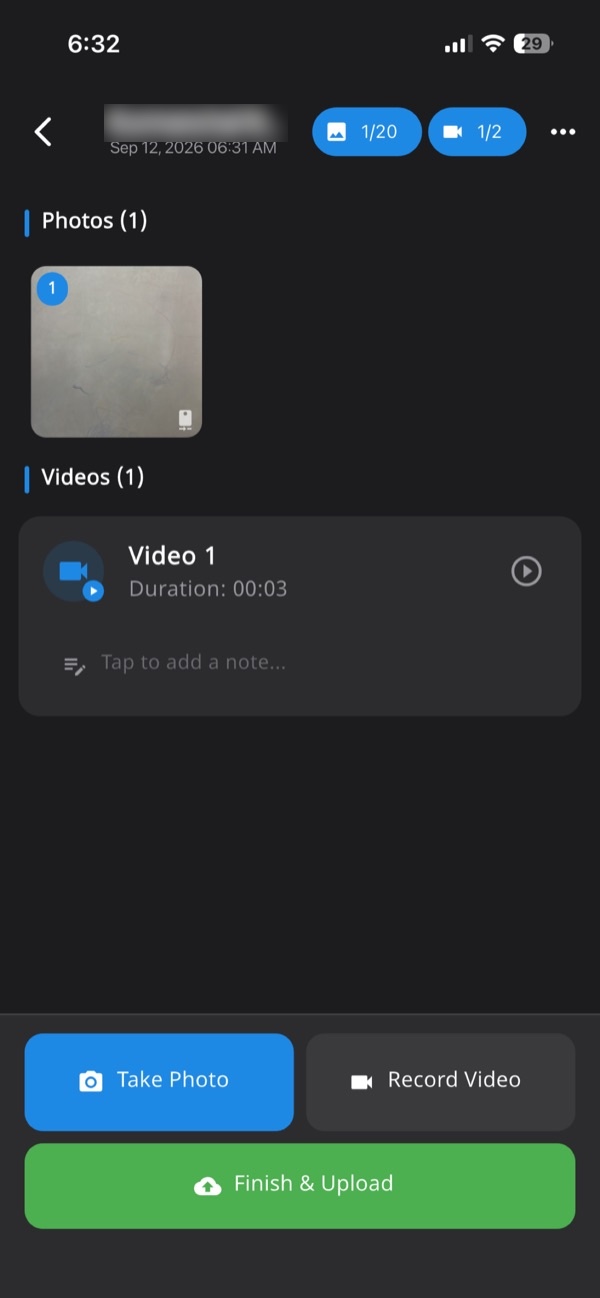
- Open Verafii and start a job for the house, so every photo, video and note lands in one numbered session tied to the site.
- Capture the stage photos in Verafii's own camera. There is no gallery and no file picker, so only live photos go in.
- Check that the GPS and time stamp are burned into each photo at the shutter, and retake any that are blurred.
- Add a short note: the beneficiary, the stage and any problem you saw.
- If there is no signal, carry on. Verafii captures offline and uploads when the phone is back online.
- Make the one-tap PDF report before you leave the site. It carries location, device, time and a QR code.
Anyone can then scan the QR to open a public verification page, with no account and no app. Learn more about how to check a Verafii report.
Keeping it organised across a team of masons and verifiers
A block may have hundreds of houses. Order is what saves you at inspection time.
- One person per visit. Name who captures at each house, so a question has one answer.
- One session per house and stage. Do not mix houses in one folder or one chat.
- Same name everywhere. Use the beneficiary's name or ID the same way in the Awaas App, your notes and your report.
- Review the same day. A supervisor looks at the photos before the crew leaves, while a retake is still easy.
- Share a report, not a bundle of images. Send the PDF to the engineer, not 30 loose pictures.
For more on records for government work, read our post on geo-tagged photos for government work and what to keep. If your crew sends a daily update, use the daily progress report template. See also how geo-tagged photos for bills work, including what no government body has approved.
What this record can't do
Be clear about the limits.
- It is not the official record. A Verafii report is not uploaded to AwaasSoft and does not replace the Awaas App photo.
- It does not decide acceptance. Whether a block, a department or an inspector accepts any photo or report is their decision.
- It cannot prove quality. A photo shows what the camera saw. It does not show cement strength, depth of footing or steel spacing under the concrete.
- GPS is not exact. It can drift near buildings and trees. Fake GPS is flagged on Android and iPhone in Verafii, but a flag is a reason to ask, not proof.
- It cannot fix a missing stage. If a stage was built and covered without a photo, no later picture changes that.
- It is not a promise of payment. Nothing here speeds up or guarantees an instalment.
A checklist before the inspection
- Confirm the stage list and who may capture with your block office.
- Charge the phone and check the Awaas App is logged in.
- Check the stage is complete before taking the photo.
- Stand at the house, with the full structure and a landmark in frame.
- Shoot in daylight and hold the phone still.
- Take the official photo in the Awaas App and review it before submitting.
- Take your own record of the same visit, live, with location and time stamped.
- Write a one-line note: house, stage, date, anything unusual.
- Make the report before leaving the site.
- Keep the report and notes in one place for the block engineer.
Frequently asked questions
What photos does PMAY-G need at each stage?
The Awaas App's store listing says it captures a time-stamped, geo-tagged photograph of the house at each construction stage. It does not list the stages. Ask your block office for the list that applies to your sanction.
Can I upload a PMAY-G photo from my gallery?
The official photo is meant to be captured in the Awaas App, which records the time and geo-coordinates. A gallery picture or a forward from a chat app does not carry that live record. Check with your block if you are unsure.
Why was my PMAY-G photo rejected?
Common causes are a blurred or dark picture, a photo taken away from the house, or a stage that looks unfinished. Rules differ by state, so ask the block office for the reason. Retake the photo at the house in good light.
Who can take the geo-tagged photo for PMAY-G?
The Awaas App store page names the PMAY-G beneficiary or their representative, and designated PMAY house inspectors. Your block can tell you who is allowed in your area.
Does Verafii upload photos to AwaasSoft?
No. Verafii does not upload to AwaasSoft and does not replace the Awaas App. It gives your team its own record of the same visit, with GPS and time burned into live photos and a PDF report with a QR code.
Will Verafii make sure my photos are accepted?
No. Whether a block office or department accepts any photo is their decision. A Verafii report shows where, when and on which device the photos were taken, and anyone can check it.
Do Verafii reports work in Hindi?
The app and dashboard come in 11 languages, including Hindi, Marathi, Tamil, Telugu, Bengali, Gujarati and Kannada. Reports and photo watermarks are in English.
Keep your own record of every house visit
Try Verafii free for 30 days, with a call at the end to decide whether to continue. You can start the free trial or ask for a quote. The price depends on your team: the number of field agents and admin users, how long you keep evidence, and photo and video quality. This article is general information, not legal advice.
