A photo report format PDF can be built in three ways. Use a Word or Google Docs table if you are at a computer and want control of the layout. Use an Excel sheet if the report is a long numbered list. Use a phone app if you must send it before leaving site. This post is for site engineers, supervisors and surveyors. It covers each method, whether the PDF can be edited later, and which to choose.
The quickest way, by situation
Choose by where you are and who will read the report.
- Before the photos are taken: decide the layout first. One photo, one caption, one number per entry. A reader should not have to guess which photo belongs to which note.
- At the site, on a phone: use an app that builds the PDF from the photos you just took. You can send it before you leave.
- Back at the office, on a computer: use a Word or Google Docs table, or an Excel sheet, and save it as PDF.
For the contents of the report, see our posts on the work completion report format and the site inspection report format. This post is only about building the file.
Method 1: Word or Google Docs with a photo table
A table keeps photos and captions aligned, so each page looks the same.
- Set the page to A4 and keep the margins narrow.
- Insert a table with two columns and as many rows as photos per page. Microsoft explains this in its help page to insert a table in Word. Google has the same steps in its help page to add and edit tables in Google Docs.
- Put the photo in the left cell and the caption in the right cell. A caption should hold the photo number, the location, the date and one line of what it shows.
- Keep all photos the same width so the pages look even.
- Add a header with the project name and the site address.
- Save as PDF. Word has this under its save options, described on Microsoft's page to save or convert to PDF. In Google Docs, use the download option, described in Google's help to create, view or download a file.
Verdict: good layout control, but slow with 40 photos, and every date or place in a caption is typed by hand.
Method 2: Excel photo sheet
Excel suits a report where each row is one check, with a serial number, a description, a status and a photo.
- Set up columns for serial number, location, description, status and photo.
- Insert each photo into its row. Newer versions of Excel can place a picture inside a cell, as Microsoft describes in its help to insert a picture in a cell.
- Compress the pictures if the file grows too large. Microsoft explains how in its help to compress a picture.
- Set the print area and page breaks, so no photo is cut across two pages.
- Check the print preview, then save the workbook as PDF.
Verdict: good for a numbered checklist. Large photos make the file heavy, and page breaks often need fixing.
If you want a ready layout for daily reports, our free daily progress report template comes in Excel and A4 PDF, with no sign-up.
Method 3: a phone app that builds the PDF
Some phone apps collect photos into a job and produce a PDF for you. This removes the step of copying photos into a document. It matters most when the report is due the same day.
When you compare such apps, ask these questions:
- Where do the photos come from? A camera inside the app, or the phone gallery? Gallery photos can be old.
- Are the place and time on the photo? Or do you type them in?
- Can the reader check the PDF? Or must they take your word for it?
- Can you build it offline? Many sites have weak signal.
- Does it carry your logo? Clients notice this.
A simple scanner or document app is enough when you only need a tidy PDF for your own records.
How to do it with Verafii
Verafii is a GPS camera photo report app. It builds the PDF from photos taken inside its own camera, so there is no gallery step.
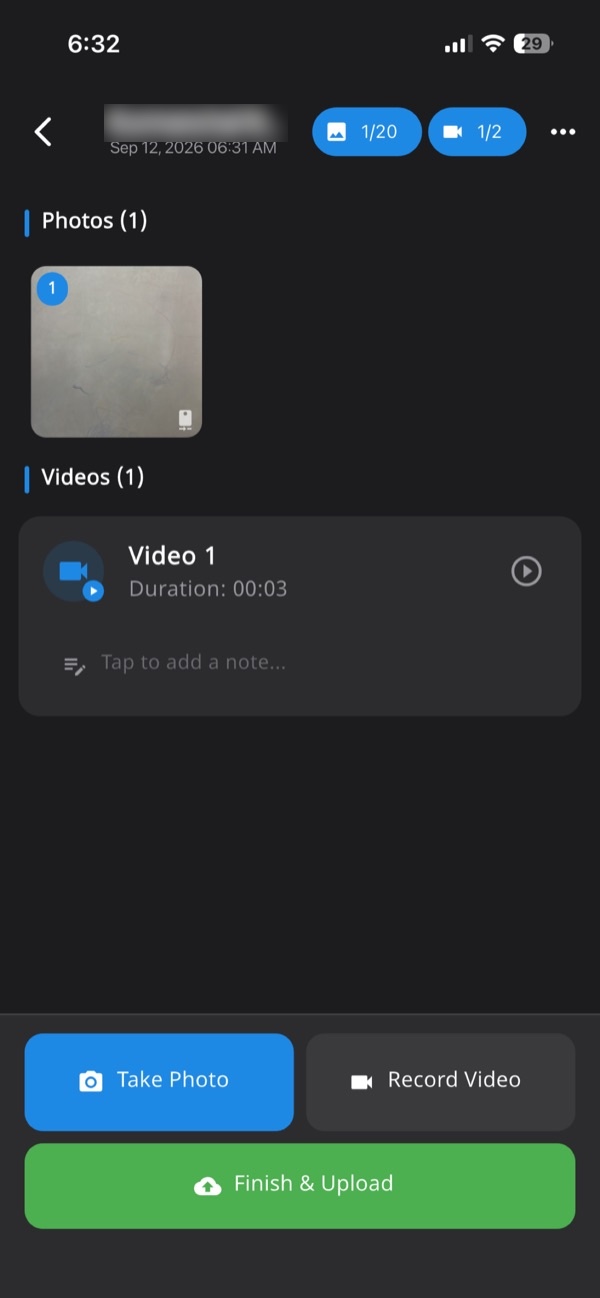
- Open the app and start a job for the site.
- Take photos and video with Verafii's camera. Each one is stamped with GPS and time at the moment of capture. It works with no signal and uploads when the phone is back online.
- Add a note to a photo where it helps. Every photo, video and note lands in one session, numbered and tied to the site.
- Before you leave, make the report with one tap.
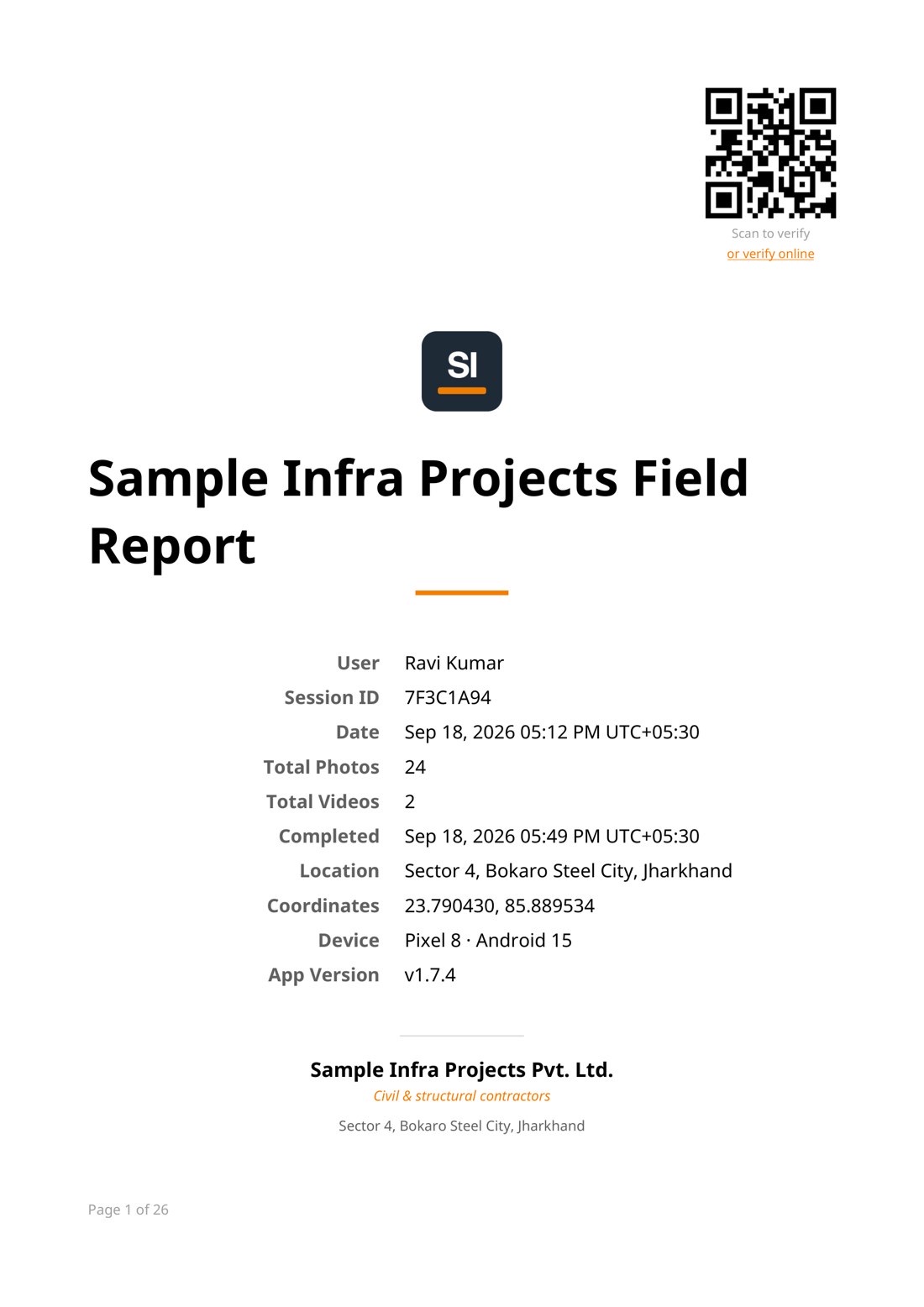
- Check the PDF. It carries your company logo, with location, device, time and a QR code.
- Send the PDF to the client by your usual channel.
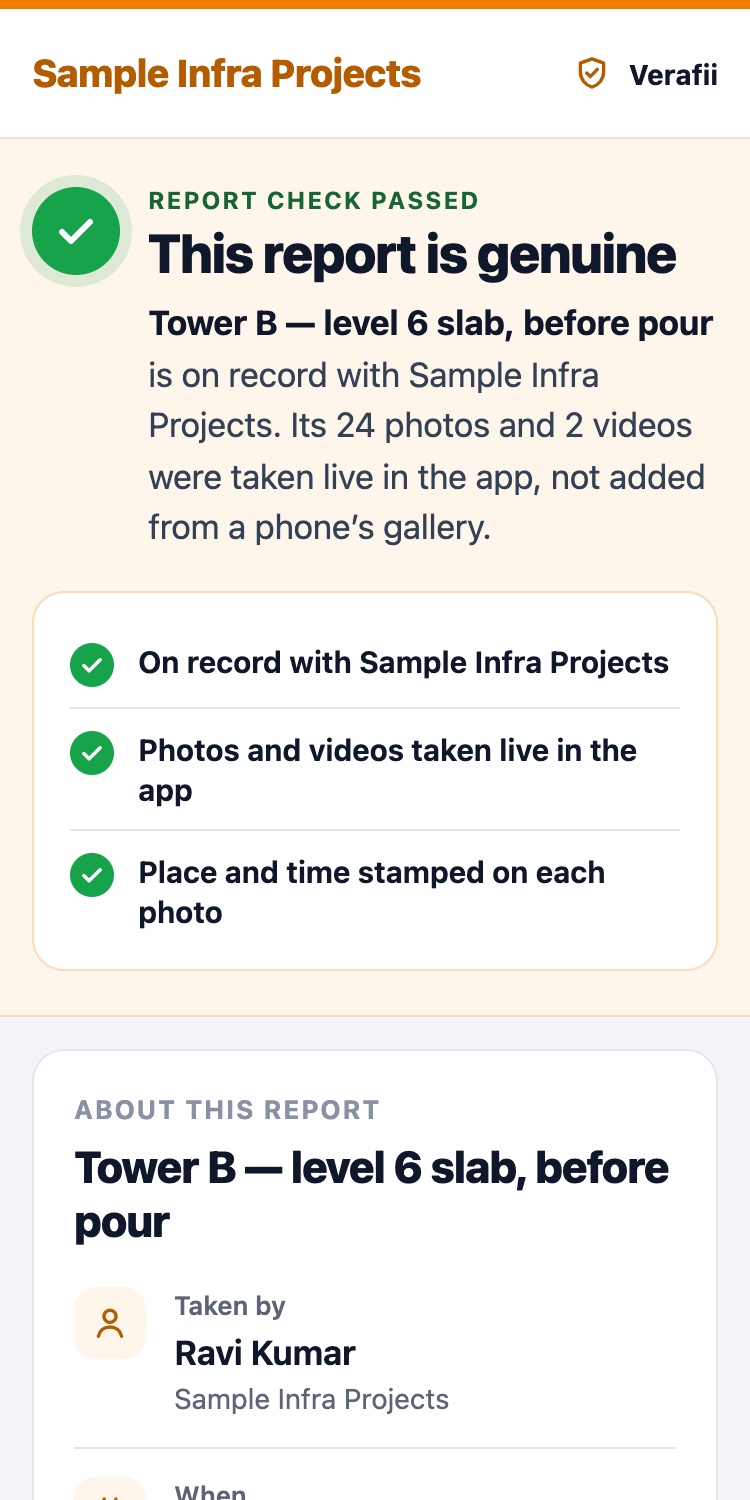
Anyone can then check a Verafii report. They scan the QR, which opens a public page, with no account and no app.
The app is in 11 languages, but reports and photo watermarks are in English.
Can a report be edited afterwards?
It depends on how the PDF was made.
- Word, Google Docs or Excel: the source file can be changed freely. Photos can be swapped and captions retyped, then saved again as a new PDF. A PDF can also be altered with a PDF editor. Nothing in the file tells the reader what changed.
- A phone app without a check: the same applies. The PDF is only as trustworthy as the person who sent it.
- A Verafii report: it carries a SHA-256 fingerprint covering the PDF, every photo and every video. A reader can drop the file they received into the verify page, and the check happens in the browser, with nothing uploaded. A match means the file is untouched. If it does not match, ask the sender for the original.
What a report can't prove
A PDF report is a record of photos. It is not proof that the work was good.
- Quality of work: a photo shows what was in frame. It does not show what is behind a wall or under a slab.
- Accuracy of captions: in a Word or Excel report, every caption is typed by a person and can be wrong.
- Exact position: GPS drifts indoors and near tall buildings. Ask the crew before you accuse anyone of a wrong location.
- Fake location: Verafii flags a photo taken with a fake location on Android and iPhone. A flag is a reason to ask, not a verdict.
- Acceptance: a fingerprint shows the file is unchanged. Whether a client, PMC or department accepts a report is their decision.
- Official records: a report does not replace a measurement book or any official portal upload, and Verafii does not upload to government portals.
Which method to use
- Use Word or Google Docs if you are at a computer, the report is a one-off and the client wants a particular layout.
- Use Excel if each row is a numbered check and you already keep your records in a sheet.
- Use a simple phone app if you only need a neat PDF for your own file.
- Use Verafii if the client or PMC (project management consultant) will question when and where the photos were taken, or if you need the report before leaving site.
Frequently asked questions
How do I make a photo report in PDF on my phone?
Use an app that collects photos into a job and builds the PDF for you, or paste photos into a Google Docs table on your phone and download it as PDF. Google's help page on adding and editing tables covers Android. An app with its own camera saves the copying step.
What is the best photo report format in PDF?
A two-column layout works well: photo on one side, caption on the other. Each caption should carry a number, the location, the date and one line of description. Keep the photos the same size so every page looks even.
How do I keep a photo report PDF small enough to email?
Compress the pictures before saving to PDF. Microsoft explains this in its help on compressing a picture. Fewer photos per page and smaller image sizes also help.
Can a PDF photo report be edited after it is made?
Yes. The Word or Excel source can be changed and saved again, and a PDF can be altered with an editor. A Verafii report carries a SHA-256 fingerprint, so a reader can check whether the file they received is untouched.
Is there a free template for a site report?
Yes. Verafii offers a free daily progress report template in Excel and A4 PDF, with no sign-up. It is a layout for the daily record, which you can pair with photos.
Will Verafii make sure my report is accepted?
No. Whether a client, department or insurer accepts a report is their decision. Verafii's report shows the location, device, time and a QR code that anyone can scan to check it.
Build your next photo report before you leave site
Try Verafii free for 30 days, with a call at the end to decide whether to continue. Start the free trial or ask for a quote. The price depends on your team: field agents, admin users, how long evidence is kept, and photo and video quality.
Sources
- Insert a table (Microsoft Word help)
- Save or convert to PDF or XPS in Office desktop apps (Microsoft)
- Insert a picture with the Place in Cell feature in Excel (Microsoft)
- Compress a picture (Microsoft)
- Add and edit tables, Google Docs Editors Help (computer)
- Add and edit tables, Google Docs Editors Help (Android)
- Create, view, or download a file, Google Docs Editors Help